Snap a Paper Form, Get a Mobile Form: AI Digitizes the Fields for You
Turn paper checklists or multi-page PDFs into MobileForm forms with AI field extraction, type detection, and a review step before your crew uses them.
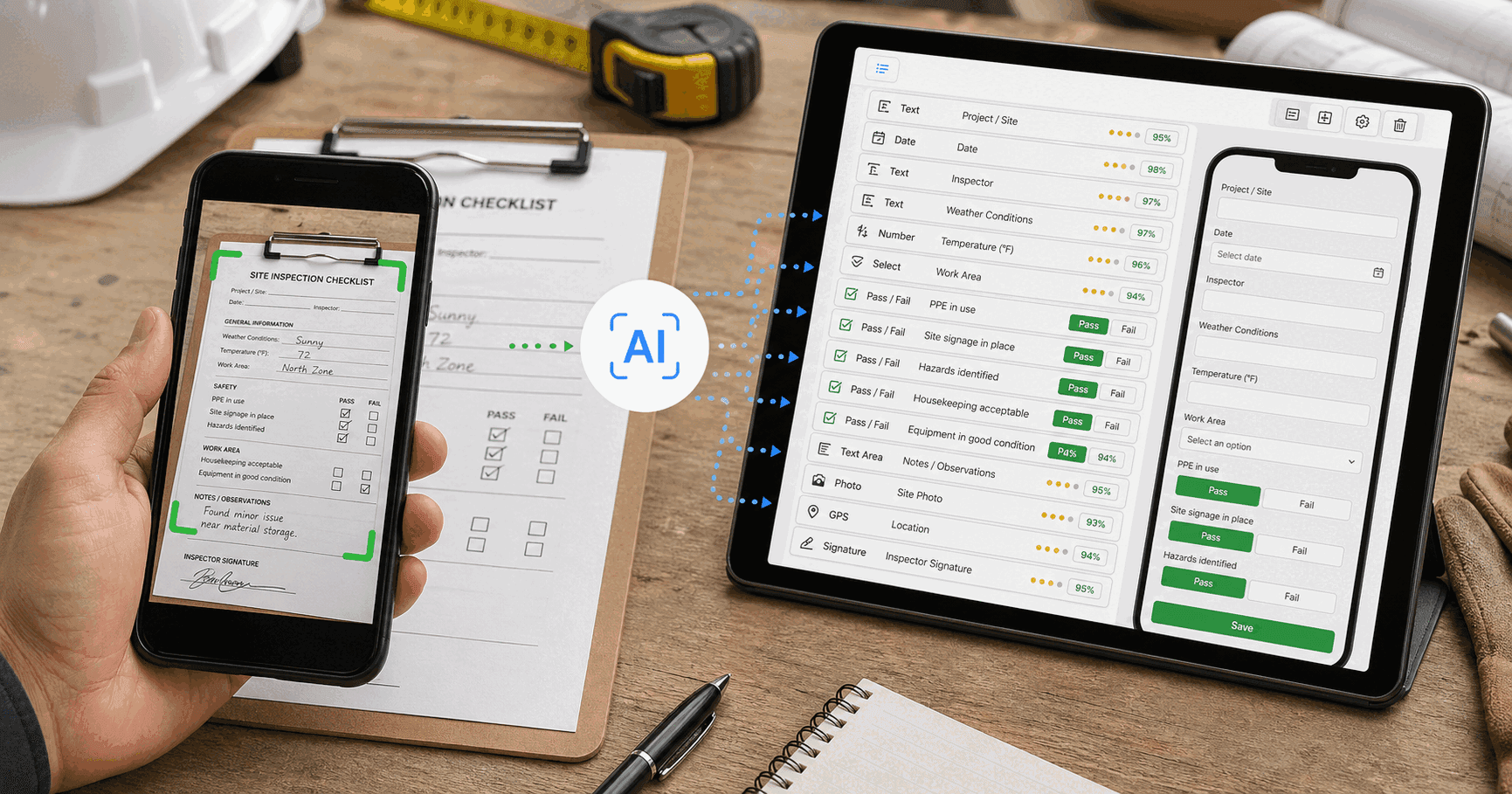
The Problem: Rebuilding Paper Forms Field by Field
Most field crews already have a paper form that works. The inspection checklist printed on the clipboard. The site survey from a folder. The QC pass/fail sheet someone designed in Word three years ago. It's been refined, the fields are in the right order, and everyone knows it.
So when you switch to a mobile form builder, the friction isn't the concept of going digital. It's the half-hour of clicking Add field → Pick type → Type the label twenty-five times to recreate something you already have on paper.
That's where most trial users give up. The form they want is sitting on the desk in front of them. They just don't have the patience to retype it.
Paper form import removes that step. Snap a photo. Get a mobile form.
How It Works
Three steps. Most of the work happens in the first one.
- Tap "Start from a paper form." On the Create a new form dialog, pick the featured option. (You can also upload a PDF, up to 3 pages on Free or 20 on Pro and Team, if you have a scan saved.)
- Pick a file. Take a fresh photo with your phone, or upload an existing image (JPG, PNG, HEIC, up to 10 MB) or a PDF (up to 30 MB, subject to your plan's page limit). We compress and resize on your device before uploading, so your bandwidth and battery don't take a hit.
- Review and save. A few seconds later you're in the form builder with the title pre-filled, every field typed, and a banner reminding you to double-check. Fields the AI wasn't fully sure about have a small yellow dot, your cue to look closer.
That's it. No mapping, no template hunting, no retyping.
What Gets Recognized
The AI maps each visible field on the paper form to the closest MobileForm field type. The mapping rules, in priority order:
- Yes/No, Pass/Fail, OK/Not OK, ✓/✗ → Pass/Fail field
- Single checkbox or "I agree" → Checkbox field
- Multiple-choice with one selection ("circle one", radio buttons) → Dropdown with the printed options
- Numeric measurements, counts, scores → Number field
- "Date:", "Inspection date" → Date field
- "Time:", "Inspection time" → Time field
- "Signature:" line → Signature field
- "Photo:" or "Attach picture" → Photo field
- GPS or coordinates → GPS field
- 1–5 stars or scale ratings → Rating field
- Multi-line write-in space → Long text field
- Everything else → Short text
The importer can also recognize multi-select choices, line-item tables, section headings, and substantive instruction or consent text. Review these carefully against the original. Branding and pre-printed signatures are not recreated as completed answers.
Where the AI Gets Less Sure (and How You'll Know)
Vision models are very good at typed paper forms with clear field labels. They're less good at:
- Heavily handwritten or annotated forms
- Multi-column layouts where it's not obvious which question goes with which answer space
- Choice groups where it is unclear whether one or several answers are allowed
- Heavily branded or stylized layouts where labels and decoration blur together
For any field where the AI guessed the type from context rather than an explicit cue, the field card in the builder shows a small yellow dot. That's not an error, it's a "please double-check this one" signal. Most of the time the type is right; sometimes a Short text field should be a Number, so you add a Number field and delete the old one, or you fix a label.
Save the form when it looks right. The yellow dots don't get persisted; they're a one-time review hint.
Limits
A few things to know up front:
- Up to 20 pages per import. Free plans can import up to 3 pages at a time, Pro and Team up to 20. Multi-page forms are digitized in page order, with the fields merged into one form in the builder.
- No image storage. The photo or PDF is processed and discarded. We don't save the original, only the extracted fields and your eventual edits. If you want to import the same form twice, you'll need to upload it again.
- Monthly quota by plan. Free includes 3 pages of import per month. Pro includes 100. Team is unlimited. Failed extractions (the image wasn't a form, or no fields could be read) don't count against your quota.
If you have a paper form right now, give it a try. It's the fastest way from "I should digitize this" to "this is done."
See a real import, field by field. Follow the PDF-to-mobile-form walkthrough, or download a work order template to try with your team.
Ready to try MobileForm?
Free offline form builder for field teams. No app install needed.
Get started freeMore from the blog
How to Convert PDF Forms to Mobile Forms for Field Teams
Turn paper and PDF forms into mobile field forms that work offline, with photo capture, GPS, signatures, and PDF reports for field teams.
GuideHow to Replace Paper Forms for Field Teams (Step-by-Step)
A practical guide to replacing paper forms with digital field inspections, surveys, and reports without disrupting your crew's workflow.