Repeating Sections: Inspect Every Room Without Rebuilding Your Form
Capture the same fields for every room, unit, or asset in one submission. Field workers tap Add another instead of you cloning fields by hand. A new Pro feature in MobileForm.
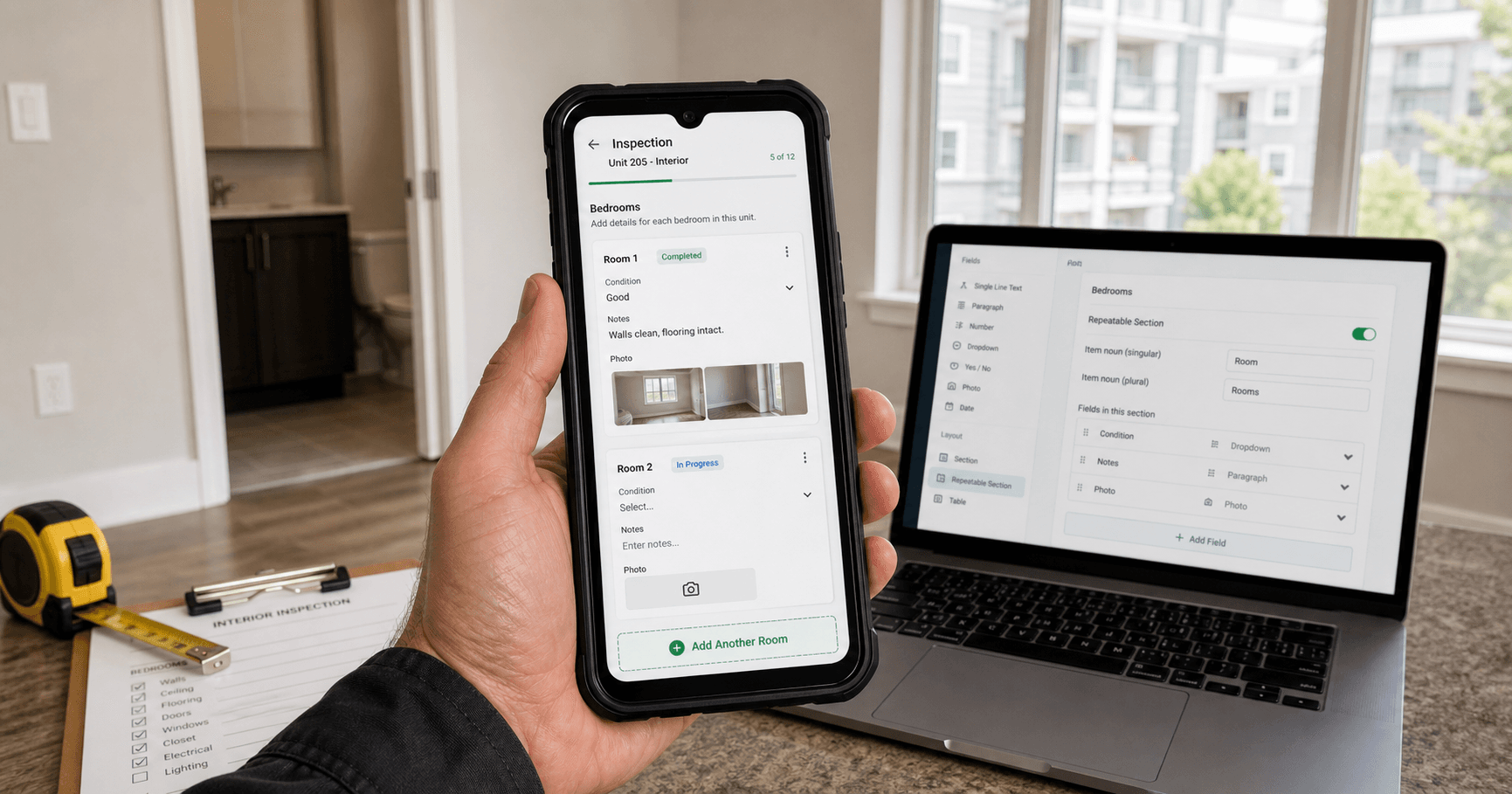
The Problem: One Form, Many Rooms
A property inspector walks a four-unit building. Every unit needs the same checks: condition, pass or fail, a note, a photo. Until now you had three bad options.
Clone the same fields four times and rename them by hand, which falls apart the moment a building has five units instead of four. Build one oversized form that assumes a fixed number of rooms and wastes space when there are fewer. Or file a separate submission per room and lose the single record that ties the job together.
The form was never the problem. The problem is that real jobs have a variable number of the same thing: rooms, units, assets, vehicles, people on site. Repeating sections handle that directly.
See how repeating room checks fit into a complete property inspection report.
What It Does
You design one section. The field worker decides how many they need.
In the builder you add a repeating section, give the item a name (Room, Unit, Asset, Vehicle), and add the fields that should be collected for each one. When a worker fills the form, they see a single card for the first item with those fields inside. A tap on Add another room creates a second card with the same fields, then a third, as many as the job needs. Each card is numbered, and any card can be removed with one tap.
Everything stays inside one submission, so the record for that building, route, or work order stays whole.
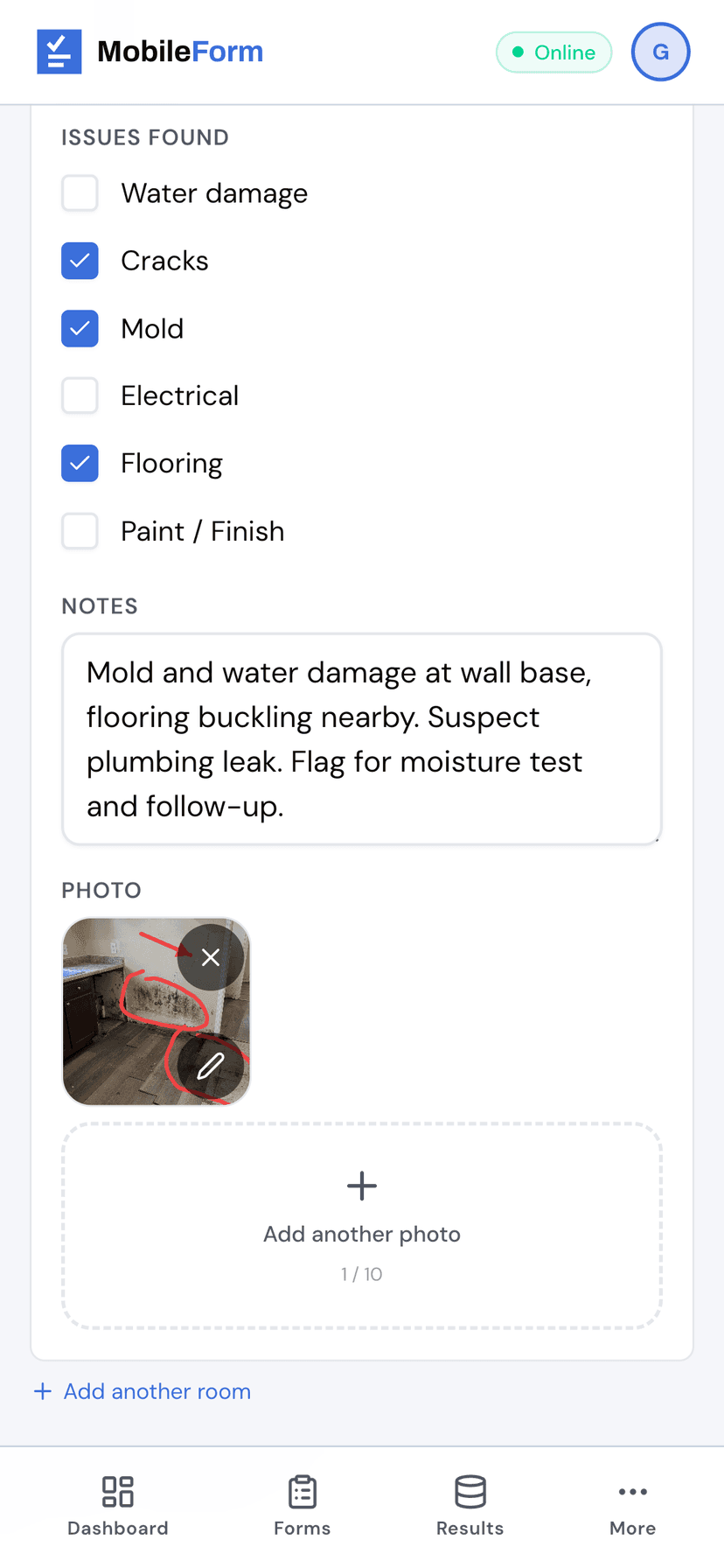
How to Build One
- In the form builder, tap Add Field and choose Repeating Section. It is a Pro field type, marked with a lock on the Free plan.
- Set the section title (for example, Room Inspection) and the item name in the singular (Room). The item name is what the worker sees: Room 1, Room 2, and the Add another room button.
- Add the fields that belong to each item. Tap Add field inside the section and pick from short text, long text, number, dropdown, multi-select, checkbox, pass or fail, date, time, rating, and photo. Mark any of them required.
- Set a maximum if you want a ceiling. The cap is 20 instances per submission.
- Save. That is the whole setup.
How It Looks When Filling
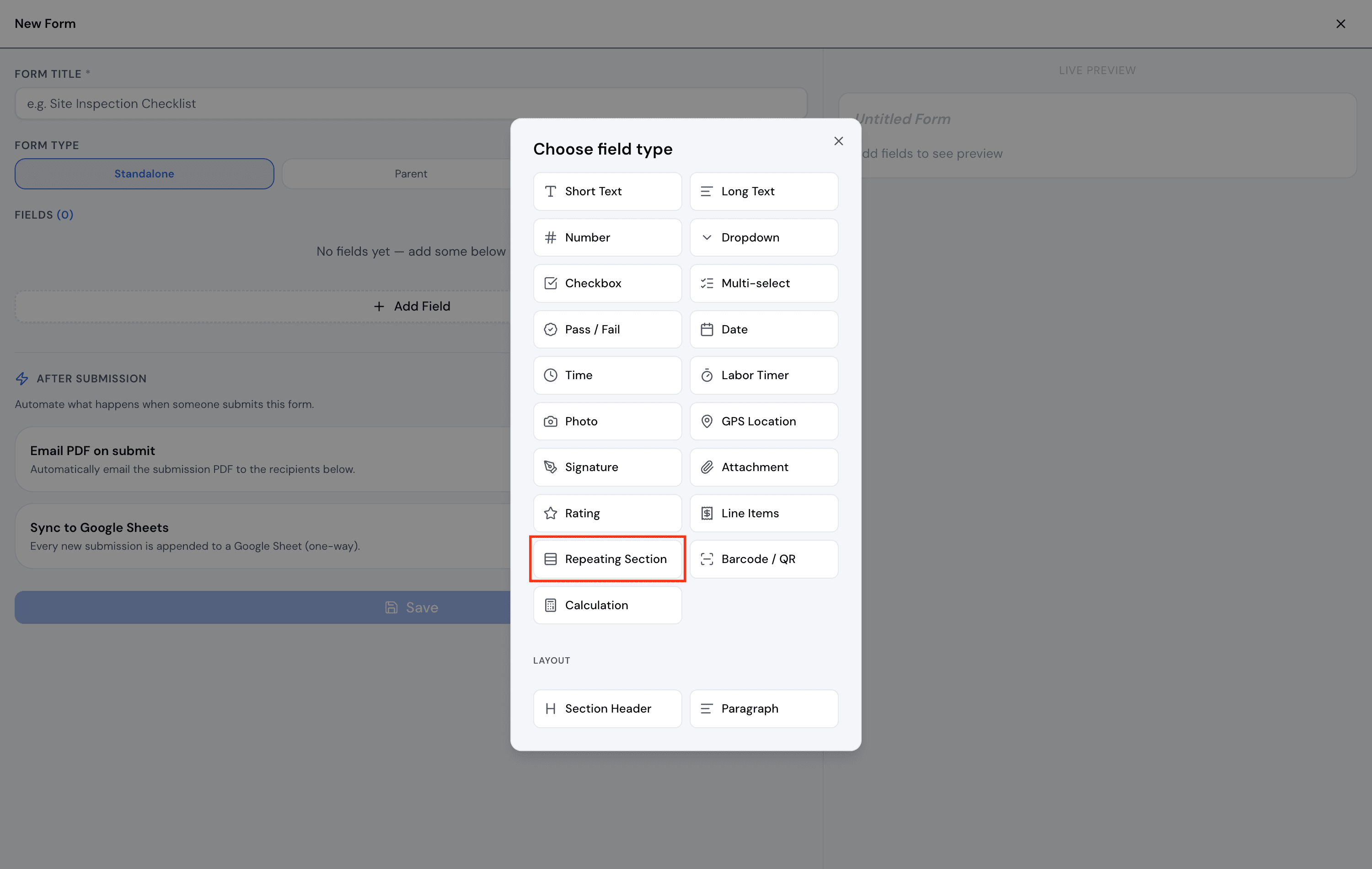
Your crew never configures anything. They open the form and see Room 1 with your fields inside it. They fill it in, tap Add another room, and a fresh Room 2 appears. A small remove control on each card drops one they added by mistake.
If you marked the section required, the form will not submit until there is at least one room. And any room a worker started has to have its required fields filled before they can submit, so half-finished rooms do not slip through.
What Can Go Inside a Section
A repeating section holds the everyday data fields: short text, long text, number, dropdown, multi-select, checkbox, pass or fail, date, time, rating, and photo.
Photos matter here. A per-room photo, marked up to point at the exact problem, is often the whole point of an inspection. (See our companion post on annotating inspection photos.)
To keep this first release predictable, a few field types are not allowed inside a section: signature, GPS, file attachment, line items, calculations, barcode, the labor timer, and another repeating section. If you need one of those, keep it as a normal field outside the section.
In Your Exports and PDF
Repeating data flows into every export.
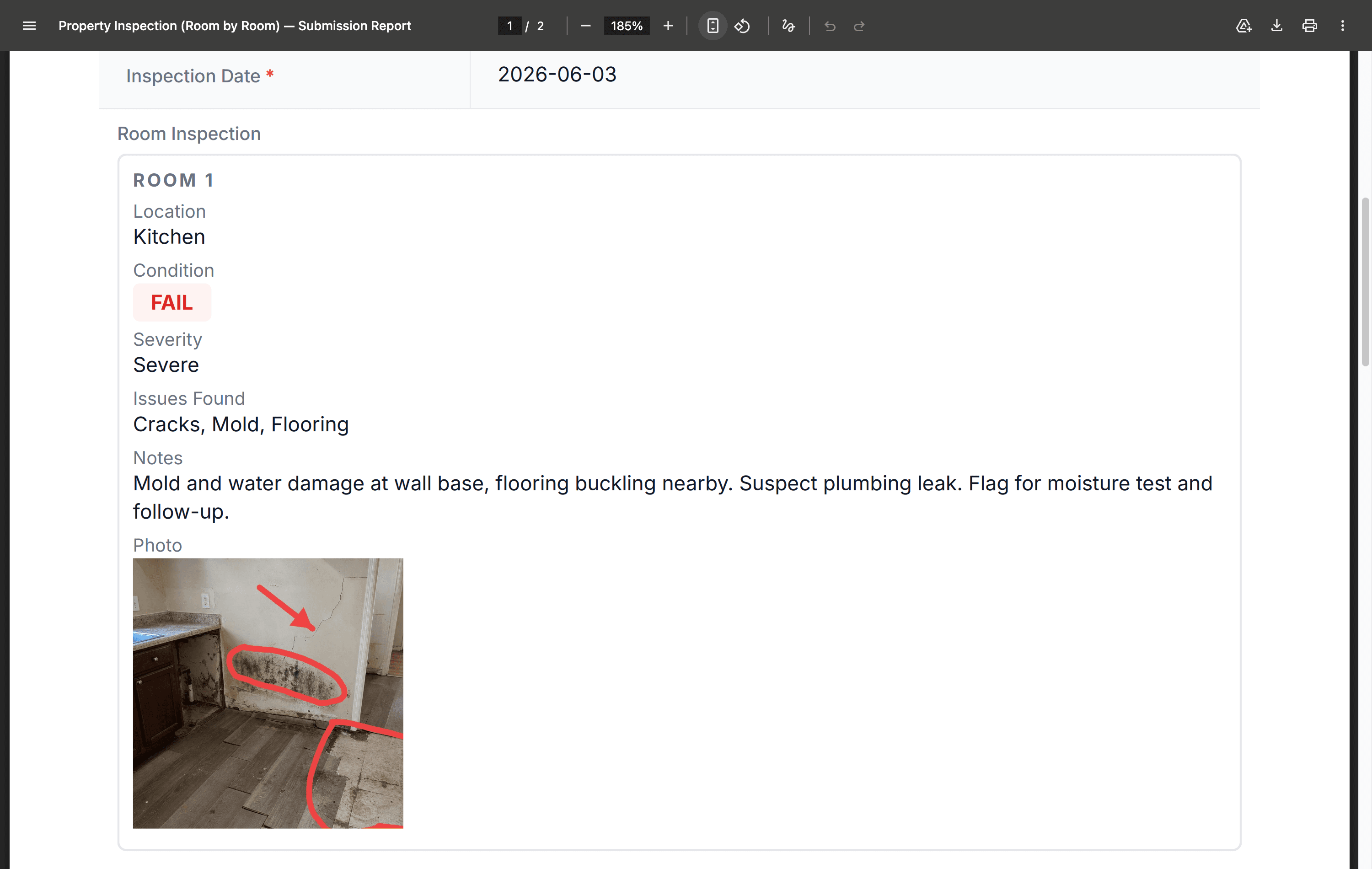
- The PDF report and a single-submission Excel download show each room as its own labeled block, with that room's fields and photos laid out in order.
- The all-submissions Excel download and the live Google Sheets sync keep one row per submission. The whole section is summarized into a single readable cell, like "Room 1 - Kitchen | Fail | 2 photos" and "Room 2 - Bath | Pass". Your spreadsheet stays one row per job instead of exploding into dozens of columns.
Good to Know, and How to Start
A few details worth knowing:
- Repeating sections are part of the Pro plan, alongside conditional logic, calculations, and barcode scanning.
- A section is capped at 20 instances per submission to keep the form fast on a phone and the exports readable.
- Sections do not nest. A repeating section cannot contain another repeating section.
To try it, open any form in the builder, tap Add Field, and choose Repeating Section. Name your item, drop in the fields each one should collect, and your field crew can start logging room by room, unit by unit, asset by asset, all in a single submission.
Ready to try MobileForm?
Free offline form builder for field teams. No app install needed.
Get started freeMore from the blog
Form Groups: Fill Multiple Linked Forms in One Site Visit
Link a main form to related check forms, reuse shared fields, guide crews through one site visit, and export the whole set as a PDF bundle.
Industry5 Best Practices for Digital Construction Site Inspections
Improve your construction inspections with digital forms, photo documentation, and GPS tracking. Practical tips for site managers and inspectors.