Install MobileForm on Your Phone (No App Store Needed)
Add MobileForm to your home screen in under a minute. Step-by-step instructions for iPhone and Android, plus why installed beats a browser tab for offline work.
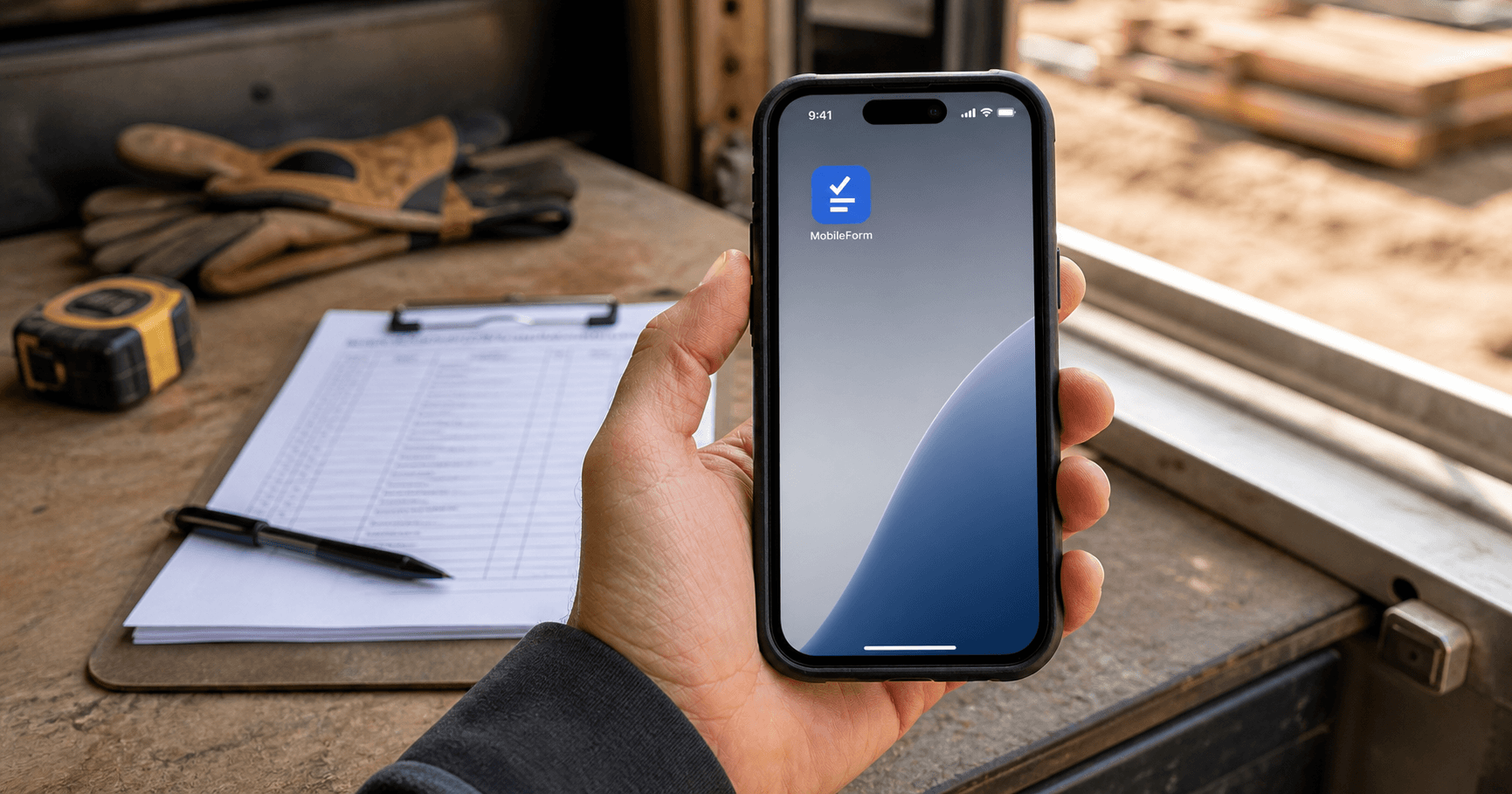
Why Install Instead of Using a Browser Tab
MobileForm runs fine in a browser. But installing it to your home screen takes under a minute and changes four things that matter in the field.
It opens like an app. One tap on the icon, full screen, no address bar, no browser tabs to lose it in.
Your drafts are safer. This is the big one. Safari deletes a website's locally stored data after about 7 days of not visiting it. If a tech saves an offline draft in a plain browser tab and does not open that tab again for a week, the draft can be gone. The installed app is exempt from that cleanup, so drafts and cached forms stay put.
It works offline by design. Forms you have opened are cached on the device, and the Go Offline button on the dashboard downloads everything before you leave coverage. Submissions made offline sync automatically when signal returns.
It can send you notifications. On iPhone and iPad, notifications only work from the home screen app. Once it's installed, turn them on under Settings, Notifications to hear about new jobs assigned to you, clients replying to what you shared, and PDF emails that didn't go through.
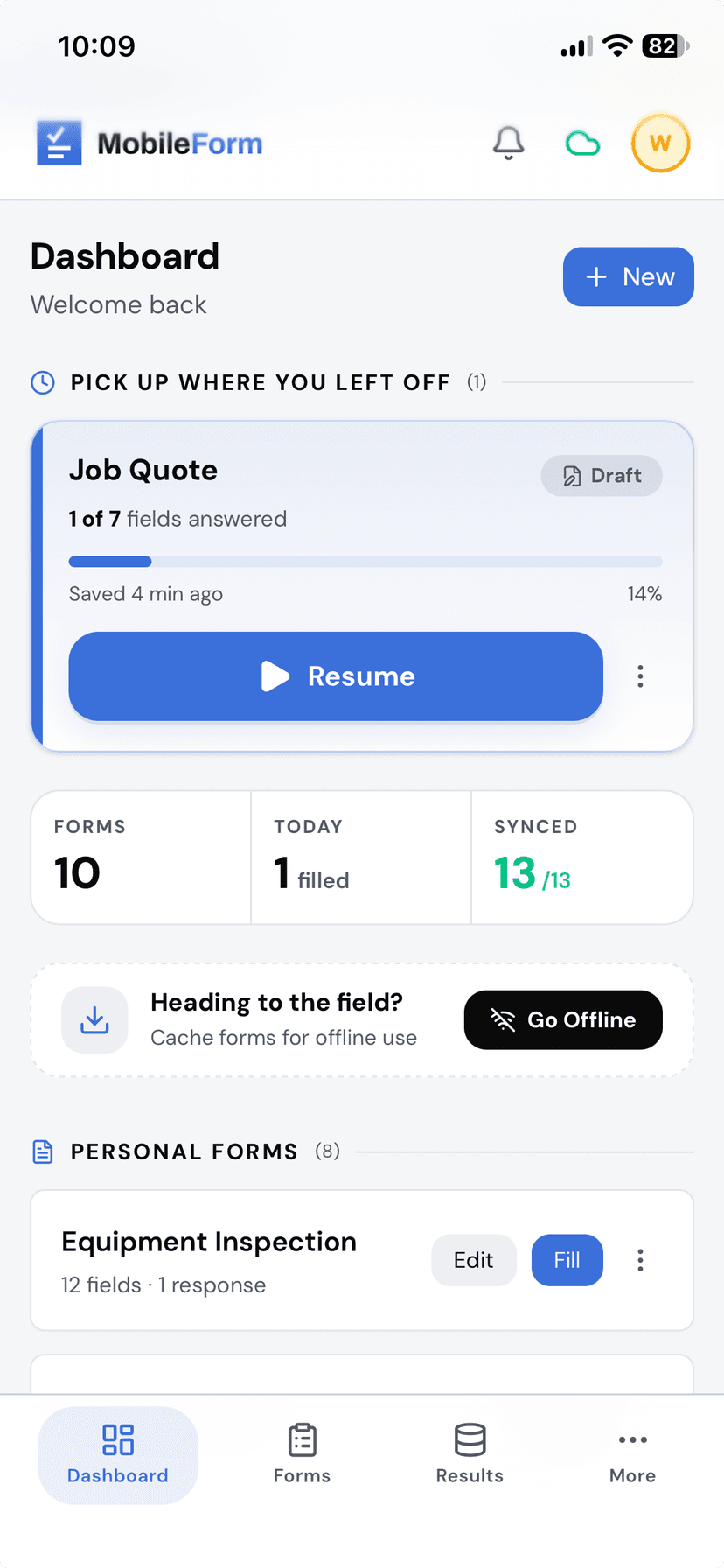
There is nothing to download from the App Store or Play Store, no update to approve, and it takes no meaningful storage. The install is the same MobileForm, just promoted from a tab to an app.
iPhone: Install from Safari
- Open MobileForm in Safari and sign in.
- Tap the Share button, the square with an arrow pointing up, in the toolbar at the bottom of the screen.
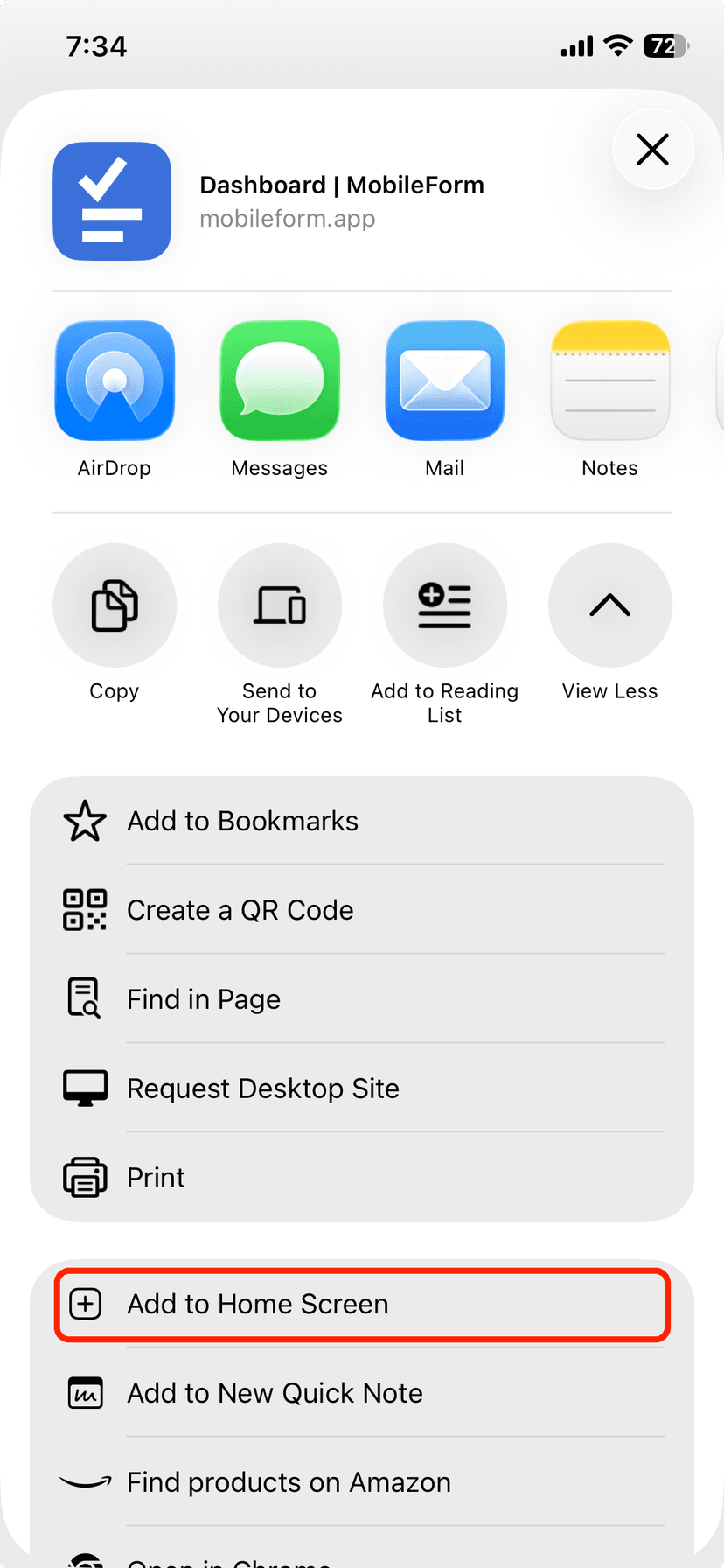
- Scroll down the list of actions until you see Add to Home Screen, and tap it. It is below the row of app icons, so you may need to swipe up.
- Tap Add in the top right corner.
The MobileForm icon appears on your home screen. From now on, open it from there instead of Safari.
iPhone: Install from Chrome
Chrome on iPhone can do this too, the button is just in a different place.
- Open MobileForm in Chrome and sign in.
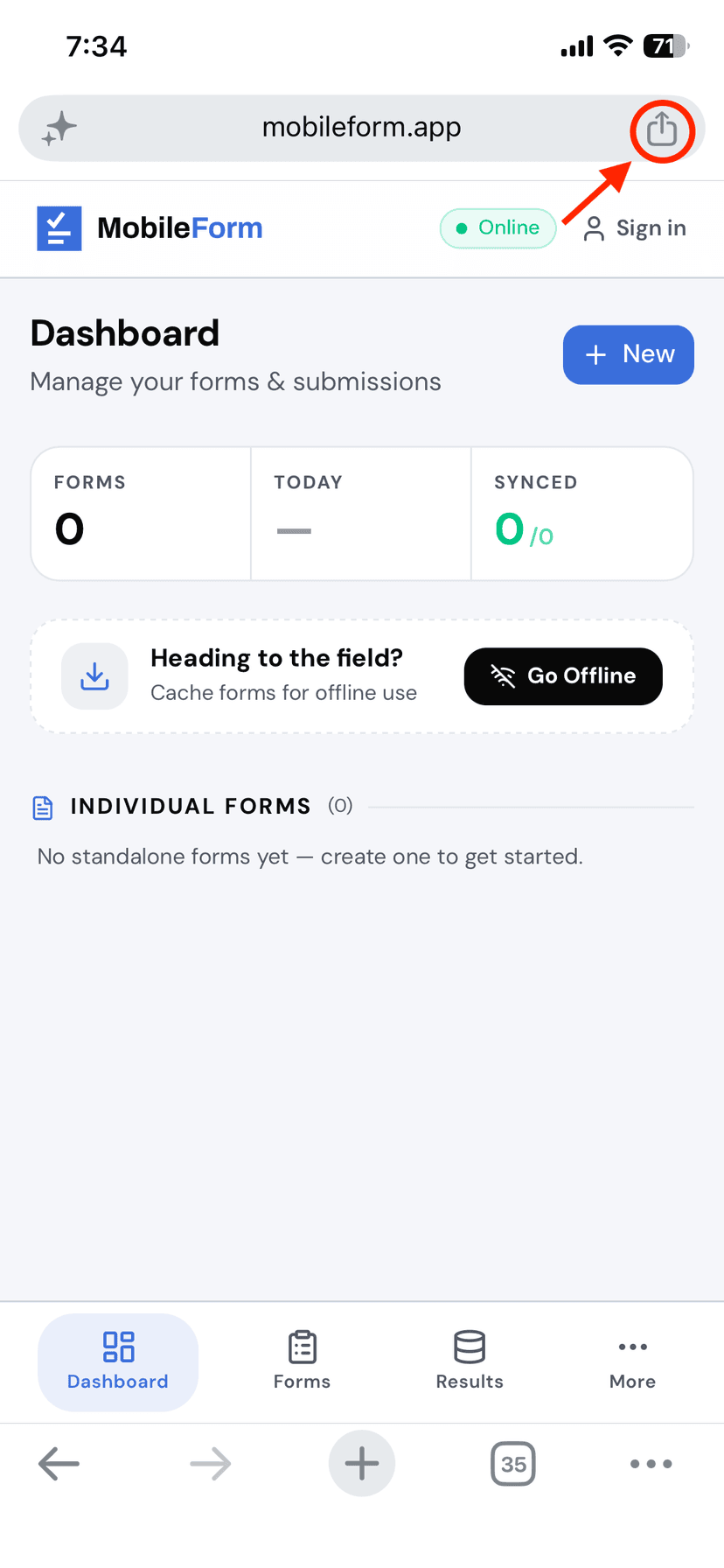
- Tap the Share icon at the top right of the address bar.
- Scroll down and tap Add to Home Screen, then tap Add.
One note for Brave users: Brave on iPhone does not offer Add to Home Screen yet. Open MobileForm in Safari once, install it from there, and the installed app works the same no matter which browser you normally use.
Android: Install from Chrome
Android makes this the easiest of all.
- Open MobileForm in Chrome and sign in.
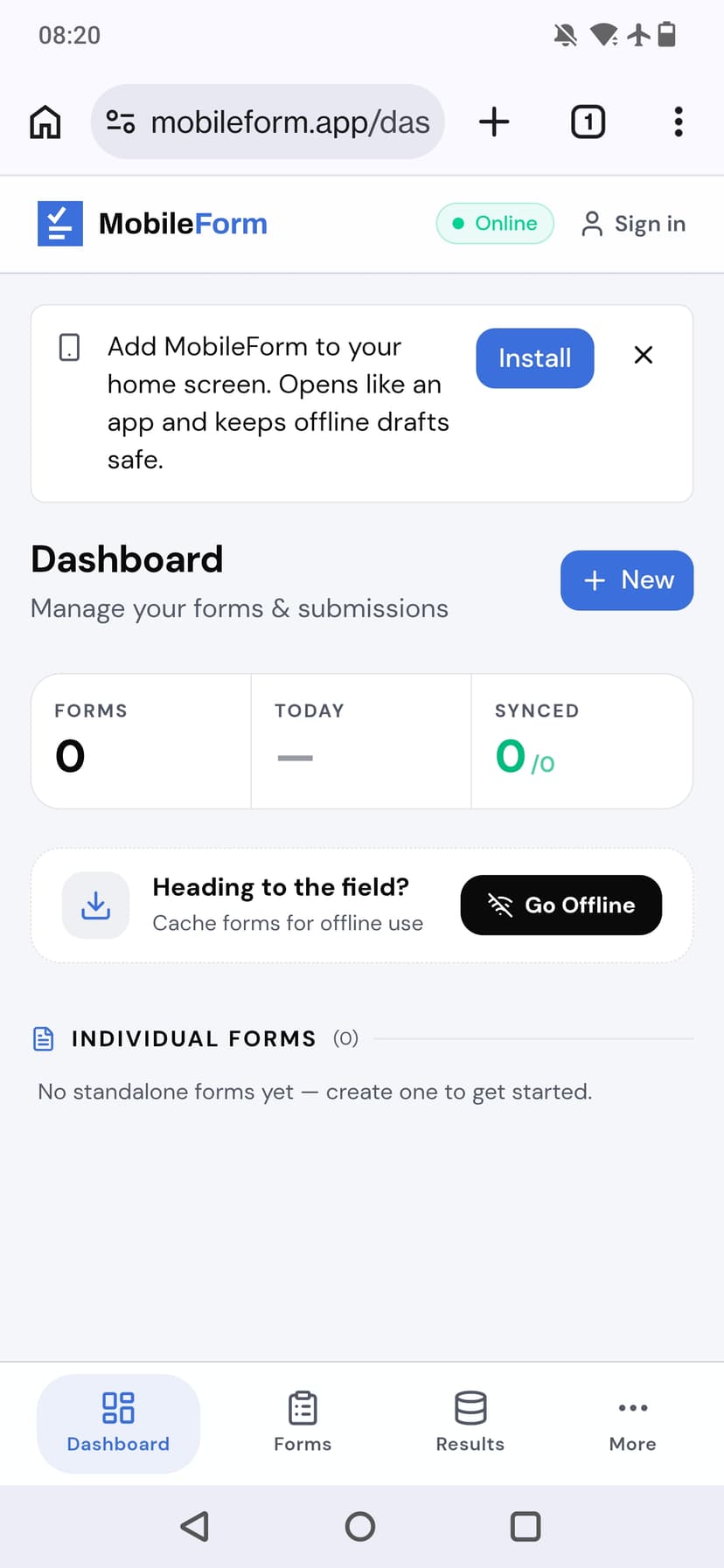
- MobileForm shows an install banner on the dashboard with an Install button. Tap it, then confirm.
- No banner? Tap the three-dot menu at the top right, then Add to Home screen or Install app, depending on your Chrome version.
The icon lands on your home screen and in your app drawer, like any other app.
Opened the Link from Email or a Chat App?
If you tapped a MobileForm link inside Gmail, Outlook, WhatsApp, or LinkedIn, you are probably in that app's built-in browser, and built-in browsers have no install option at all.
Look for an Open in browser or Open in Safari option in the corner menu of that screen, or copy the link and paste it into Safari or Chrome yourself. Then follow the steps above.
After Installing: Use the Icon, Not the Tab
One thing worth knowing: the installed app and your browser keep separate local storage. A draft saved in a Safari tab does not appear inside the installed app, and vice versa.
So make the switch clean. Once the icon is on your home screen, do your field work inside it: fill forms there, save drafts there, and tap Go Offline there before heading somewhere without signal. Everything that syncs to your account, submitted forms, assignments, and team data, is available everywhere you sign in. It is only unsynced local drafts that live on one side or the other.
When a new version is ready, an Update button appears at the top of the app. Tap it to switch now, or just reopen the app later and it switches on its own. No app store and no version numbers to manage.
Ready to try MobileForm?
Free offline form builder for field teams. No app install needed.
Get started freeMore from the blog
How to Collect Field Data Without Internet in 2026
How offline field data collection apps work, why they matter for remote teams, and how to set up a workflow that syncs when crews reconnect.
GuideHow to Replace Paper Forms for Field Teams (Step-by-Step)
A practical guide to replacing paper forms with digital field inspections, surveys, and reports without disrupting your crew's workflow.