Timesheets With a Time and Place on Every Photo
Track time on site with a start and stop timer, and back it up with photos that record when and where they were taken. Plus a free contractor timesheet template.

The Problem: "What Time Did You Get There?"
A tech says they were on site from 8 to 4. The customer says nobody showed up until 10. The timesheet says 8 to 4, written at the end of the day from memory, and that is all anyone has to go on.
Payroll day has the same problem. A stack of handwritten hours, each one a best guess, and no way to check any of them. Usually nobody lied. There is just nothing to check.
How One New User Set It Up
A new MobileForm user recently built a daily timesheet for on-site repair work: a labor timer for the hours and a photo field to show they were there. It is a good pattern, and every piece of it already works in MobileForm, so we turned it into a free contractor timesheet template.
Here is what each piece does.
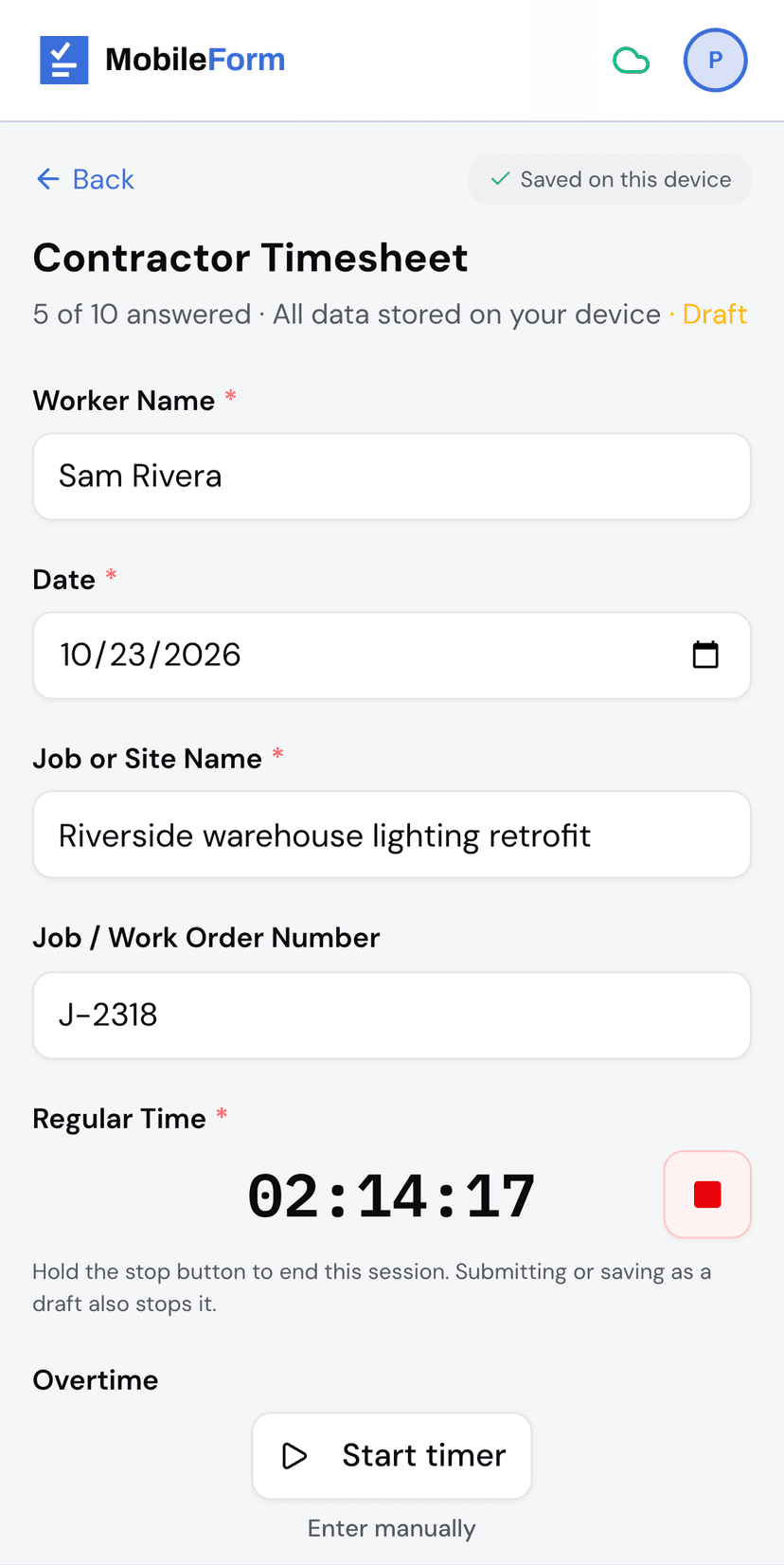
The Timer: Start on Arrival, Hold to Stop
Add a Labor Timer field to a form, and the worker gets a stopwatch built for a job site.
- Tap Start timer on arrival. The clock runs from that moment. Locking the phone or switching apps does not stop it.
- Hold the stop button to end a session. A tap is not enough, so a phone in a pocket cannot end the day early.
- Lunch is a second session. Stop for the break, tap Add session when work picks up again, and the sessions add up.
- Regular time and overtime can be two timers. Overtime is usually paid or billed differently, so keep it out of the regular total.
Photos With a Time and a Place
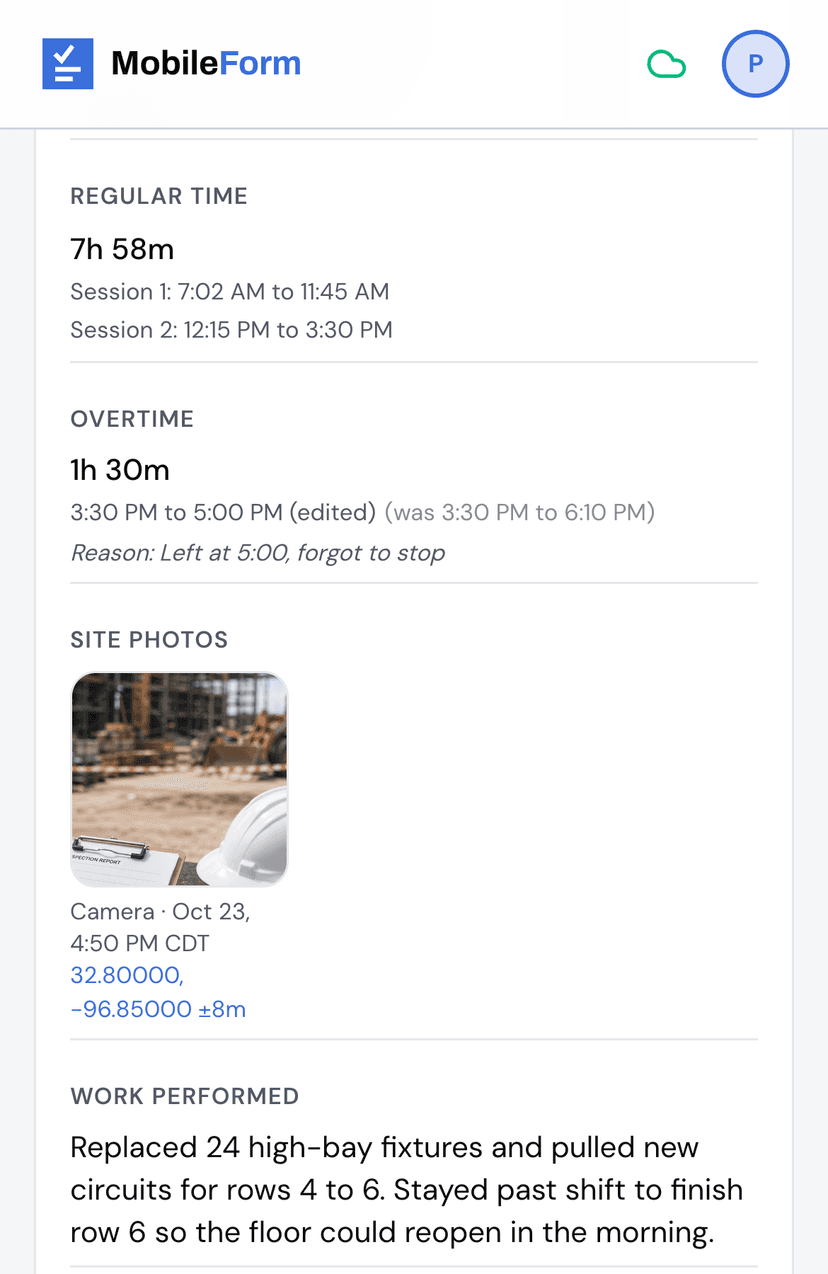
Photo fields have a setting called Record location with each photo. Turn it on, and each photo in that field gets a line under it in the report and the submission view:
- Where it came from: Camera, or From library for a photo picked from the phone's gallery.
- When: the time it was taken.
- Where: the coordinates, with a link that opens the spot on a map.
The setting is off by default, so turn it on for any photo field that is meant as proof. The timesheet template has it on already.
To be straight about what this is: a clear record of time and place, not tamper-proof evidence. Like any web app, MobileForm labels where a photo came from but cannot certify it. Still, a photo of the finished work stamped 4:50 PM at the job site is a lot harder to argue with than "8 to 4" written from memory.
Forgot to Start the Timer? Fix It, With a Reason
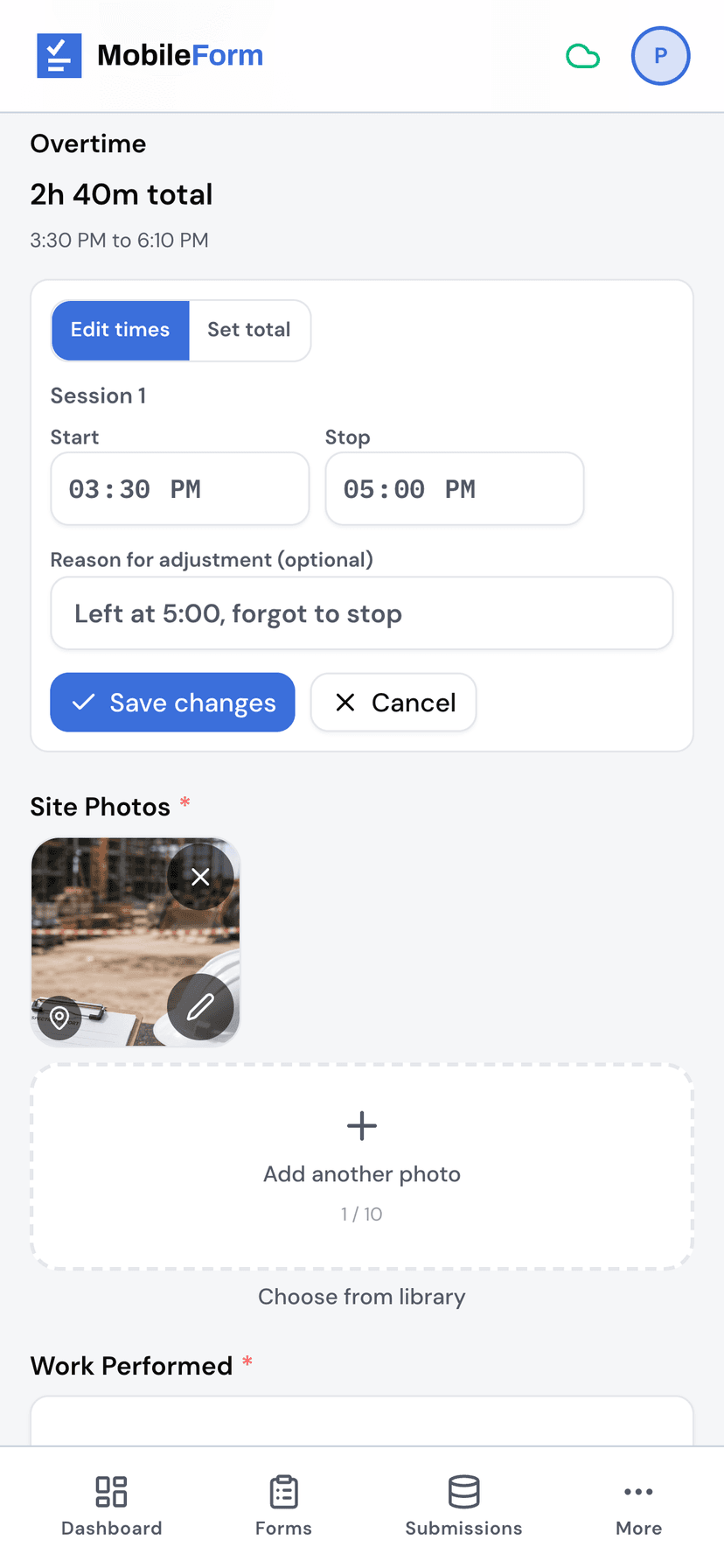
It happens. When Allow manual time entry is on for a timer, the worker can fix it:
- Enter manually from the idle timer if they never started it.
- Edit times to correct when a session started or stopped.
- Set total when all they know is that it was about three hours.
Each correction can carry a short reason, like "Left at 5:30, forgot to stop." The submission keeps the original times next to the change, so the office sees what was adjusted and why. The PDF report shows only the total for each timer, which keeps it clean if it goes to a customer.
If you would rather every minute come from a live start and stop, turn Allow manual time entry off for that timer in the form builder.
Send It for Sign-Off
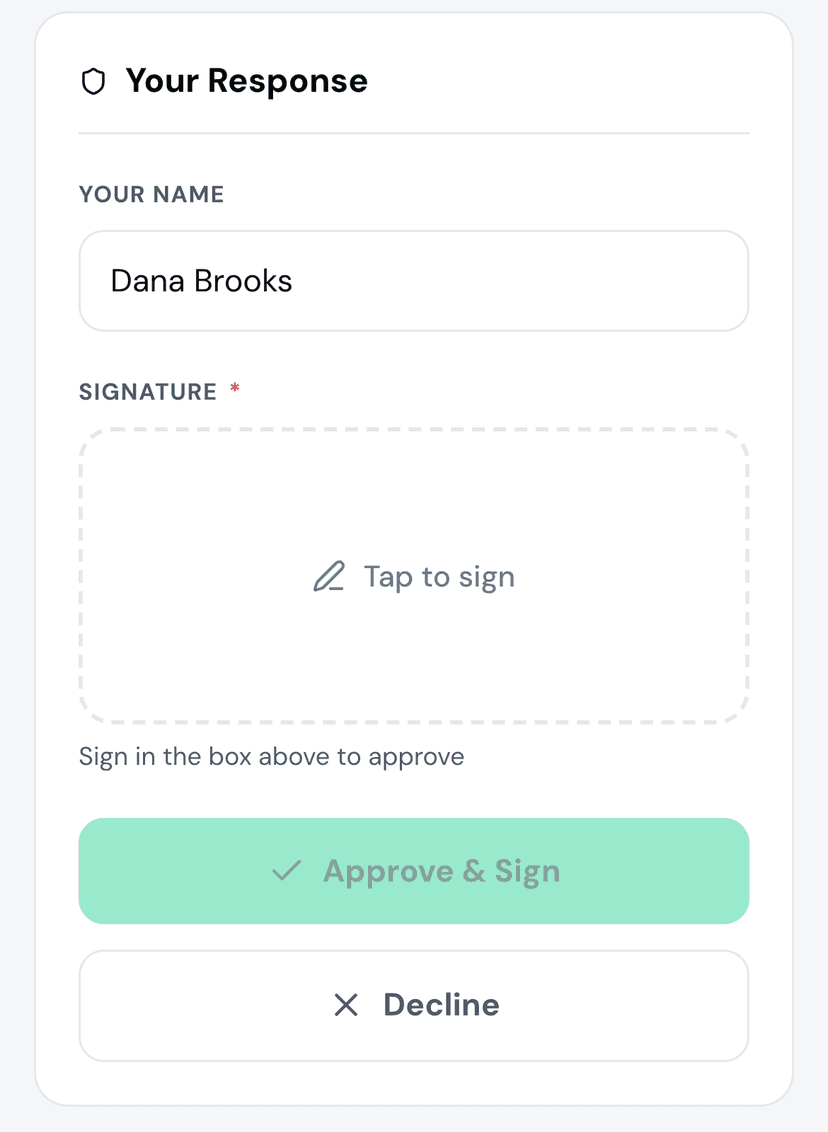
On Pro, open a submitted timesheet and tap Share. Enter your manager's or client's email, and they get a link to review the timesheet, photos included. They can Approve & Sign or Decline without creating an account, and their answer is recorded on the submission.
Get Started
Start from the free contractor timesheet template. It has a regular time timer, an overtime timer, a site photo field with location on, a work performed box, and worker and supervisor signatures. Customize it in MobileForm, or download the printable PDF and Excel versions if part of your crew still works on paper.
The labor timer and photo location are on every plan, including Free, and both work with no signal.
Ready to try MobileForm?
Free offline form builder for field teams. No app install needed.
Get started freeMore from the blog
Mark Up Inspection Photos Before You Submit
Circle damage, draw arrows, and add text labels right on a captured photo before it goes in the report. New photo annotation in MobileForm.
GuideHow to Collect Field Data Without Internet in 2026
How offline field data collection apps work, why they matter for remote teams, and how to set up a workflow that syncs when crews reconnect.