How to Convert PDF Forms to Mobile Forms for Field Teams
Turn paper and PDF forms into mobile field forms that work offline, with photo capture, GPS, signatures, and PDF reports for field teams.
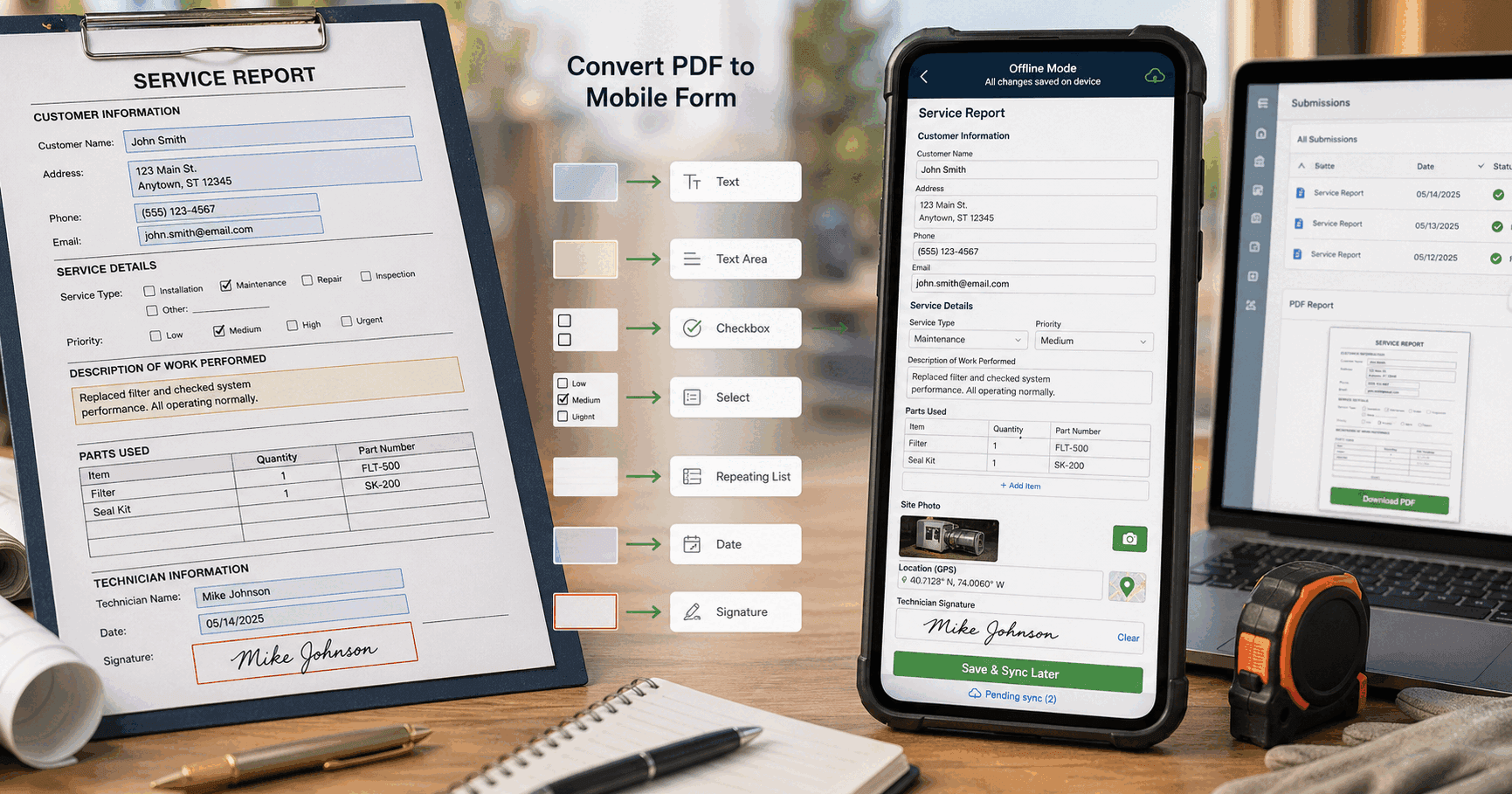
When to Move a PDF Form to Mobile
A PDF is useful when you need a printable document or a fixed layout. PDF readers can also fill and sign documents offline. A mobile form is useful when your crew needs structured answers, job photos, signatures, and records that sync to the office.
Choose one form your team uses regularly, such as an inspection checklist or HVAC service ticket. Keep a copy of the original so you can check the imported fields against it.
How AI PDF Import Works
In MobileForm, open the form builder and choose Start from a paper form. Upload a PDF or clear photos of the pages. The import uses an internet connection to extract a draft title, field types, labels, options, and sections.
Review that draft before saving. Check required fields, units, choice lists, and any items marked for review. You can rename, reorder, add, or remove fields in the builder.
The result is a mobile form, not an editable copy of the original PDF layout. Completed submissions can be exported as PDF reports. If you need a PDF that keeps its original layout and has fillable boxes, that is a different workflow.
See the paper form import guide for supported inputs and review tips.
Mapping PDF Fields to Mobile Field Types
Use this checklist when reviewing the imported draft:
| Original field | Mobile field | What to check |
|---|---|---|
| Name, address, asset ID | Text | Keep identifiers as text, including leading zeros |
| Long notes | Textarea | Leave room for the full answer |
| One choice from a list | Dropdown | Check every option |
| Multiple allowed choices | Multi-select | Confirm that more than one choice is allowed |
| Measurement or count | Number | Include the unit in the label |
| Date or time | Date or Time | Check the intended format |
| Pass/fail inspection item | Pass/Fail | Add photo or comment fields where needed |
| Parts and labor table | Line items | Check currency and tax settings |
| Signature line | Signature | Decide who signs and when |
Add photo and GPS fields if the job needs them. Review any formulas and conditional rules separately; do not assume the import has recreated your business logic.
Example: Convert an HVAC Service Report
Start with a ticket containing customer details, equipment information, readings, work performed, and sign-off.
- Upload the ticket. Use a readable PDF or photograph every page while online.
- Review job details. Confirm customer name, service address, technician, request date, and equipment ID.
- Check readings and units. Supply temperature, return temperature, and static pressure should have clear labels and the appropriate number fields.
- Review choices and costs. A single service type can use a dropdown. Use multi-select when several services can apply. Check parts and labor in a line-items field.
- Add completion evidence. Include work completed, follow-up needed, job photos, and customer or technician signatures as appropriate.
- Save and test. Fill one trial submission, review it, and export the PDF before sharing the form with the crew.
Explore the HVAC service forms workflow for a complete service visit. If you need a starting document, download the free work order template and completed example.
Prepare the Form for Offline Work
Importing a document requires internet. Once the form is saved, open it on the device while connected so it is cached before leaving coverage.
Test the form without a connection: enter answers, capture a photo, and collect a signature. GPS capture depends on device permissions and availability. Submit the test record, reconnect, and confirm it syncs to the office.
Completed forms can be exported as PDFs. Pro and Team also support Google Sheets sync when connected. See the field service report workflow for how records move from an assigned job to a completed report.
Import Limits and Review Tips
Free includes 3 imported pages per month, with up to 3 pages per import. Pro includes 100 pages per month, and Team has no monthly page limit; both support up to 20 pages per import. Check the current plans before importing a large collection.
Use clear, upright pages with readable labels. Split unrelated forms into separate imports. Check multi-column layouts, handwritten notes, choice groups, and line-item tables carefully.
The import extracts the form structure rather than transferring completed answers or preserving the original page design. Save your original document separately. Review the draft and any consent or instruction text before putting the form into use.
Start with One Form
Try one service ticket or checklist first, and have a technician complete it on the device they use at work. Review the answers, photos, and exported PDF together before rolling it out.
MobileForm's free plan includes 3 forms or form groups, 50 submissions per month, offline capture, photos, signatures, and PDF export. You can start with AI import, a ready-made template, or a blank form.
Ready to try MobileForm?
Free offline form builder for field teams. No app install needed.
Get started freeMore from the blog
Snap a Paper Form, Get a Mobile Form: AI Digitizes the Fields for You
Turn paper checklists or multi-page PDFs into MobileForm forms with AI field extraction, type detection, and a review step before your crew uses them.
GuideHow to Replace Paper Forms for Field Teams (Step-by-Step)
A practical guide to replacing paper forms with digital field inspections, surveys, and reports without disrupting your crew's workflow.