Find Any Job Report by Searching Your Inbox
Put the job address or work order number in every emailed PDF subject and file name, so the office finds a report in seconds instead of opening every email from that week.

The Problem: Every Email Looks the Same
A customer calls about the job at 1420 Elm St last Tuesday. The office manager searches the inbox, and every report from that form has the same subject, New submission: Work Order, with attachments named by date. So they open them one by one until the right address shows up.
The fix is to put the job in the subject line and the file name, so the inbox search does the work.
Pick the Answer That Names the Job
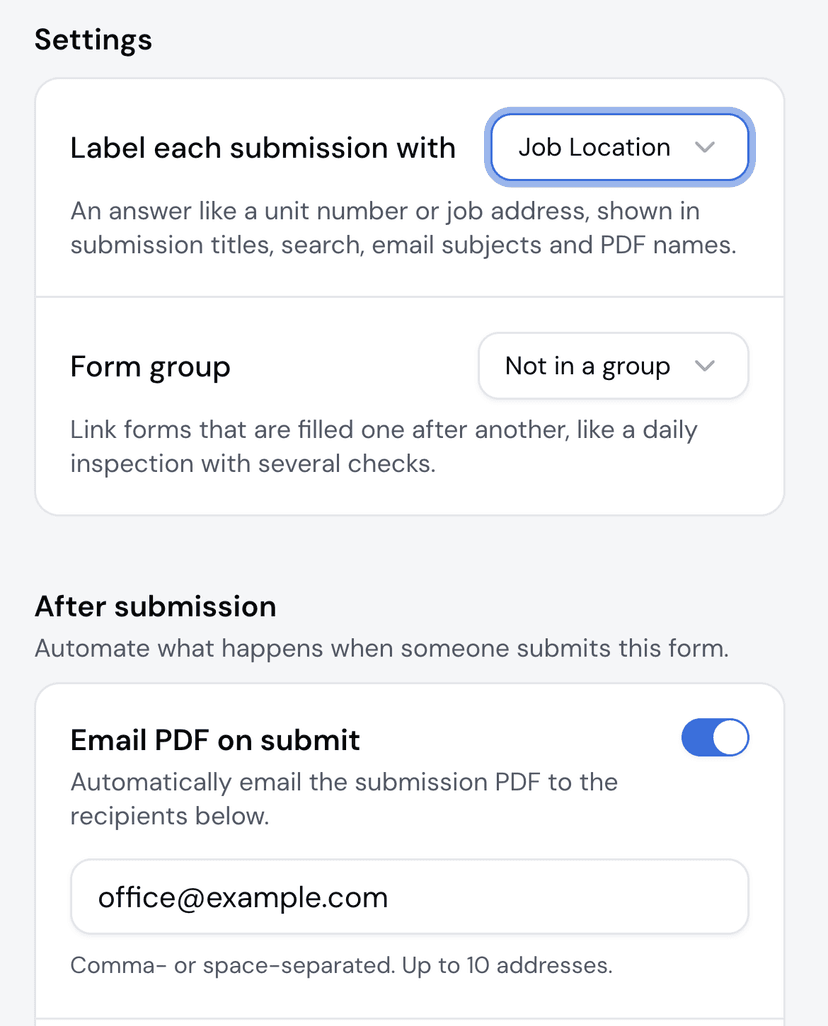
In the form builder, open Settings and choose an answer under Label each submission with. Pick the one your office would search for: the job address, a unit number, or a work order number. It can be a text, number, or dropdown field.
Where the Label Shows Up
Once it is set, the answer goes everywhere the office looks:
- Email subject:
New submission: Work Order - 1420 Elm St - PDF file name:
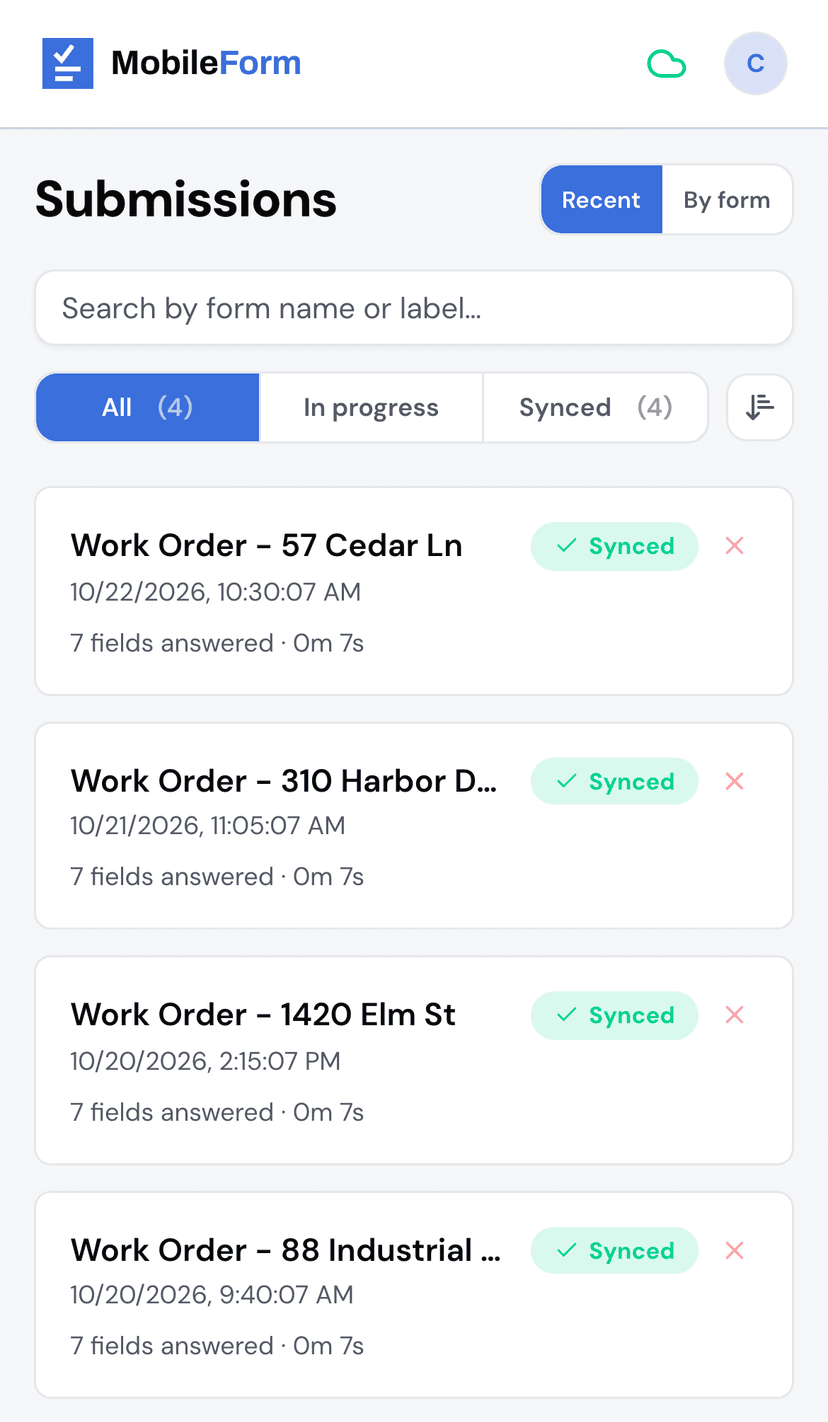
Work-Order-1420-Elm-St-2026-10-20.pdf - Submission titles in the app, and the search on the Submissions page.
In the app, past submissions pick up the label too, along with any PDF you download from them. Emails use it from the next submission on.
Send It to the Office Automatically
The label pays off most with Email PDF on submit. Turn it on under After submission and add up to 10 addresses. Every submission's PDF then arrives with the job in the subject line, so searching the inbox for "Elm St" finds it.
Both settings are on every plan.
Pick a Good Label
- Make that field required, so no report goes out without it.
- Pick something that differs per job. An address or work order number helps search. A technician's name or a Yes/No answer does not.
- Keep it short. Titles are cut at 60 characters and file names at 40.
Get Started
Open any form in the builder, pick the label under Settings, and turn on Email PDF on submit. The work order template is a good place to start: its Job Location field makes a good label.
Ready to try MobileForm?
Free offline form builder for field teams. No app install needed.
Get started freeMore from the blog
Dispatch Inspections to Your Field Crew: New in MobileForm
Send forms to field workers, prefill dispatcher-only fields, and track jobs with offline submit, cancellation, reassignment, and email and phone notifications.
FeatureLive Sync to Google Sheets: Every Submission, a New Row
Sync every MobileForm submission to Google Sheets automatically, with field values, timestamps, reference IDs, and retry handling for reports.